Ten Sites Supporting iPads In Education…


From TechLearning.com - A Post Of Resources! by Michael Gorman

 Permanent link
 ipad2 
Discover 10 great iPad education resource websites. These are entire sites devoted to bringing you the best ways to use the iPad in the classroom. They include resources, apps, lesson plans, and even some apptivities (what a neat word)!  As more schools discover the power of the iPad, there seem to be more educators excited about discovering apps that engage students while making classroom learning come alive! This is a post that you will want to share with others! Also, please visit my 21centuryedtech Blog and sign up for free email and RSS feeds that will include great technology innovation as I find it. You can also follow me on twitter at mjgormans. I want to build this list of iPad  websites past twenty! If you know of a great iPad site please leave a comment so that I can learn and share! - Have a great week!  - Mike
 Note - If you will be traveling to MEC in Tempe Arizona or CUE in Palm Springs California this March 2011 please introduce yourself at one of my sessions. I  am making the trip from Indiana and will have two presentation at each conference. They include Digital Immigrants and Digital Natives... No Future Left Behind, STEM to STEAM to STEAMIE... Turning Up The Temperature, and A 7 Step Approach to Website Evaluation... A-G.
Ten Must Visits Websites Supporting iPads In Education
Several weeks ago I reviewed one of the most powerful iPad app sites on the web. If you missed the posting be sure to give this prior post a visit. The website iEar is an amazing site based on both teacher reviews and contributions. You may just want to become a member of iEar today!  Again, check out this prior post for link and information. Perhaps you want to discover even more apps for your classroom iPad. Then read below and discover ten more sites that will bring out your need to keep filling the memory chip of your iPad, iTouch, or iPhone!
1.  The iPhone Application List – While this site has numerous categories for apps, I have directed you to a portion of the site that contains about 100 apps both free and for purchase. You can select between free and paid. Each app is click-able allowing the reader to view description, posting date, and a link to the download.
2. The iPad Pilot Project – A page filled with resources and so much more. This wiki has categories you will want to explore. There are three separate links leading to apps for elementary, middle, and high school. Don’t stop there! Make sure you explore other links including digital textbooks, challenges and successes, setting up carts, mobile management, other school districts, and articles/blogs. Also make sure you visit eMobilize (a sister site) where you will learn about mobile computing standards, curriculum, logistics, management, and use/care. The iPad pilot project is sponsored by the Department of Educational Technology in the School District of Palm Beach . It is administered on the department’s wiki by John Shoemaker, Melissa McBride, and John Long.
3. The iPad In Education –  A great site based in the United Kingdom and administered by Ian Wilson, a freelance Apple Distinguished Educator. When you visit the site be sure to have some extra time to visit all of the links. The pages, listed by subject area,  provide a large number of useful apps for teaching and learning. Categories include Apps - includedwith the iPad,    Artwork,  Geography,  History,  Literacy,  Miscellaneous,  Numeracy,  Music,  and Productivity. The United Kingdom “iPad In Education” is a must visit for those wanting to learn more about the iPad, its apps, and ways to deploy it in the classroom.
4. Teach With Our iPad - Have you ever been to one of those sites that was so filled with resources, you didn’t know where to begin! I suggest that you begin by just visiting this site. It really is so much more than an awsome collection of iPad Apps. You may wish to start with iPad Apps and its listing of over 500 apps, descriptions, reviews, and even apps to get started with. Or, instead, begin with the searchable data base or take a look at their cool list of projection apps.
5. The iPad Schools - This wiki is intended to be a clearinghouse of applications, lesson ideas, and experiences using the iPad in the classroom. The intent of this wiki is to give a listing of apps that have been tested and recommended by teachers who are using them. The listings in this wiki are generally created using google docs and members of the wiki are invited to update and add information. I especially like the  Creativity Apps,  Teacher Tools Apps and the VGA Output Apps. You also may wish to check out Managing a Classroom Set of iPads and This is what I did… (which is a selection of the authors’ reflections and practical applications.
6. The iPad Curriculum –  This website is a blog with in-depth articles relating to the iPad. It claims to be a collection of the best in applications, practices, and deployment of the iPad as a learning device. Upon reading, you’ll find the blog does give some excellent in-depth articles about apps, deployment, and uses. One of my favorites on this site helps innovative teachers write their own app using edupad without the need for code knowledge. A clever data base search engine that involves steps of Bloom’s Taxonomy is especially useful. While the site is relatively new, the archive dates to July 2010, it seems that this blog holds some great promise for iPad users.
7. AppAnnie – The link included brings you to the educational listings for this web site. Note that it lists about 200 educational apps which are click-able with a description and also note whether they are free or entail a cost. Visitors will also notice a button that will deliver a new page with 500 iPhone educational apps. If you are an app developer you may want to investigate the app nanny. This service  provides an App Care web service for iPhone app developers, helping them keep tabs on their apps. It’s free during the open beta.
8. ACALANES Union HS – This Google Site is maintained by dedicated people at a high school integrating mobile learning for their students. The link will bring you to 75 apps available for the iPad and education. Take another look and you will find a link that will provide 210 integrating apps for the iPod Touch. There is still more, how about an area dedicated to learning how to write an ebook with and for the iPad. Information includes using Google Doc Mobile, using Pages App on the iPad, or integrating with Google Docs on the computer. Last, be sure to visit the “Ideas For iPads” Slide show for some great ideas!
9. Apptivities - The website defines apptivities as, ” models for successful instructional practices with mobile devices”.  This is a unique site in that it is the application of apps that creates a transformation in learning.  Various apps are covered by offering suggestions of ways to use them in the classroom. There are even video examples to help further educator understanding. Apptivities is the response to a challenge  given at the ADE Summer Institute 2010 at Full Sail University, Orlando, Florida. ADE colleagues contribute apptivities, a specific learning activity using apps on mobile devices.  A key part of the vision for apptivities is to provide media resources that give a “view” into best practices in the classroom. You can even help support the challenge of  supporting teachers in using mobile applications effectively to improve student learning. A link for action will allow you to contribute your own apptivities.
10. Apple Ipad Site - Did you really think I would forget the company that made the iPad possible? This link brings you to a site where you will find all of those apps listed by category. You will find a large listing in the apps iTunes store. While you are at it, you may wish to learn about Apple app volume purchases.


Read More Add your Comment 0 comments


ThumbPress - Tips and Tricks for iPad


21 Useful Tips and Tricks for Apple iPad Users

Contrary to what tech-experts had predicted, the iPad turned out to be a successful product for Apple. The device turned out to be a lot more than an enlarged iPhone. There is a good chance that many of you reading this are iPad owners. If you want to get the most out of your iPad, here are a few useful tips and tricks that will save your time and increase your productivity.

1. Increase battery life

To increase the already-impressive battery life of the iPad, dim the screen a little and keep Wi-Fi and location service off when not being used.

2. Charge the iPad Quicker

0404 power 622 21 Useful Tips and Tricks for Apple iPad Users
Charging your iPad through the computer will take longer than through its wall charger – use the wall charger for quicker charging.

3. Get Free eBooks
clip image002 thumb8 21 Useful Tips and Tricks for Apple iPad Users
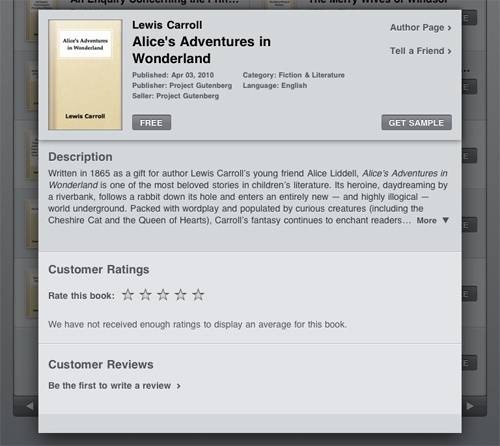
Although Apple’s native iBooks app will facilitate many eBook fans, you can get also download and read your eBooks on the iPad. Any eBook in the ePub format without DRM can be read on your iPad. Therefore you can open any website offering such eBooks for free and download them through your iPad.

4. Lock the Rotation (Disable the accelerometer)

clip image004 thumb6 21 Useful Tips and Tricks for Apple iPad Users
If you are having problems with the iPad’s accelerometer and images are being rotated without need, simply lock the orientation. Do this by using the small button located on the iPad’s side.

5. Caps Lock in notes

clip image006 thumb51 21 Useful Tips and Tricks for Apple iPad Users
The physical keyboard of a computer has the convenient CAPS LOCK button that lets us type in all capital letter. To do the same through iPad’s virtual keyboard, many users keep the SHIFT key tapped while typing other keys. However you can turn on the ALL CAPS feature simply by double-tapping the SHIFT key on iPad’s virtual keyboard.

6. Use the iPad as a Photo Frame

clip image008 thumb3 21 Useful Tips and Tricks for Apple iPad Users
You can view a slideshow of your images store on the iPad. This will convert your iPad into a photo frame that timely changes the photo. You can adjust the speed settings of the slideshow to your preference. To avoid the grained effect, simply turn off the “zoom in on faces” feature. To start the slideshow the quickest way, tap on the flower icon next to the unlock slider when you wake the iPad.

7. Check App Updates

0404 updateapps 6221 21 Useful Tips and Tricks for Apple iPad Users
New updates to your apps almost always have great new features. Remember to regularly check for app updates through iTunes.

8. The ‘Soft’ Reset

This can be extremely useful in the rare case that your iPad freezes up. The ‘soft’ reset will restart your iPad; to perform it, hold down the power and home buttons for a few seconds. To force exit any running app, hold down the home button for a few seconds.

9. Spotlight search

clip image010 thumb21 21 Useful Tips and Tricks for Apple iPad Users
Spotlight Search is a great search feature that provides a breakdown of search results according to each installed app. This way if you are looking for a keyword within Notes and not Contacts, you can browse over straight to the Notes results.

10. Jump to Top

If you are the bottom of a webpage and suddenly realized there is something at the top you want to read, no need to multi-swap your fingers – simply tap the title bar once to reach at the top.

11. 6 apps in the bottom dock

ipad dock six apps1 21 Useful Tips and Tricks for Apple iPad Users
By default you see only 4 apps in the bottom dock. But you can press any app on the screen, keep it pressed until it shakes, and drag it to the dock. This way you can have up to 6 apps in the bottom dock.

12. Indirectly View 1080p Videos on the iPad

Unfortunately you are unable to view 1080p videos on the iPad. You cannot even try because iTunes will not let you copy them to the iPad. You can work around this problem by converting the 1080p videos to 720p using a tool called Handbrake.

13. Mute faster silent than usual

0404 mute 622 21 Useful Tips and Tricks for Apple iPad Users
Unlike the iPhone, there is no Mute button in the iPad. To mute the audio quickly, just hold down the VOLUME DOWN button for more than a second.

14. Website extension quick-fill

clip image014 thumb12 21 Useful Tips and Tricks for Apple iPad Users
While typing in a website’s name in a web browser, you can complete its “.com” extension by pressing Ctrl+ENTER. The same works in iPad browser but if you keep the key combination pressed longer, you can select site extensions other than “.com” as well.

15. Use the Physical and Virtual Keyboard Simultaneously

The virtual keyboard disappears when you connect a physical keyboard to your iPad via Bluetooth. To make the virtual keyboard reappear, press the eject key located on your physical Apple keyboard.

16. Re-install deleted apps

The App Store contains all information of the apps you have installed. In case you uninstalled an app and want to relocate it, there is no need to search for it at the App Store. Simply head on over to your App Store information and you will find the app there.

17. Restrictions on apps

clip image016 thumb11 21 Useful Tips and Tricks for Apple iPad Users
To password-protect any of your installed applications on the iPad, head on over to Settings > General > Enable Restrictions > and set a password for the app. Such restrictions will require the password each time somebody wants to download anything or purchase anything using the iPad. Apps that support restriction include Safari, YouTube, iTunes, and Location. Installation of new apps will also require the password.

18. Copy paragraphs from web pages

500x copypastetip 21 Useful Tips and Tricks for Apple iPad Users
You can double-tap on a word to copy it. But to copy the entire paragraph, tap 4 times in a row. If the 4 taps are not working for you and the screen zooms in and out instead, just double-tap and swipe your finger over the paragraph to select and copy the whole paragraph.

19. Take an iPad screenshot

At the page you want to capture, hit the Power+Home button combination to get the screenshot.

20. Setting up email signature
clip image020 thumb 21 Useful Tips and Tricks for Apple iPad Users
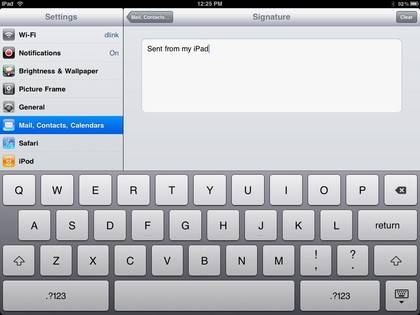
An email signature can add a lot of time when sending emails. To set a signature, go to Settings -> “Mail, Contacts and Calendar” and type in your signature.

21. Expand the Preview Mail Text

You can choose to expand the preview text to more than 2 rows. Go to Settings -> Mail, Contacts and Calendars and select “5 lines” under Preview. This will show more of the email text while you preview it.


Read More Add your Comment 0 comments


iPad as a Creation Tool


This was an impassioned plea presented in an article over at Schooltechnology.org on August 10, 2010, by Brad Flickinger. Brad is obviously enjoying the use of iPads in the classroom but struggling with certain assumptions made by people about what he can do with them. This is a great reminder to all about showing people how technology can be used for the benefits of our students. Enjoy!


I am sick of people saying that the iPad is for consuming and not creating online digital content. There is no doubt that the iPad is a great device to browse the web, read an eBook and check email (consuming) but it can do so much more than that. You will see from my list below that the iPad is far superior to the laptop in a lot of different areas of digital content creation.

iPad Creation: 
Email: We’ll start simple, the iPad is great for composing email messages, grant it, you wouldn’t want to write a novella, but short, quick and simple emails work great. By the way, that is 100% of the emails that I write.
Draw and Paint: My students love to draw and paint on the iPad. They mix colors, change brushes, etc. It is so much easier to draw and paint on an iPad with your finger than to do it on a computer with a mouse. In fact if you don’t believe me, try to draw a big circle with a mouse and then draw one with your finger, you’ll see what I mean.
Photo Editing: There are literally hundreds of incredible photo editing apps for the iPad. I sync my photos to my iPad so that I can edit them in one of the four great apps that I have. I would much rather edit them on my iPad than my MacBook. No only are the photo editing apps easy to use, but they are cheap. Compare $1.99 for an app to $80 for a photo editing program for my laptop.
Documents and Presentations: With Apple adding Keynote and Pages to the list of great apps, you can now create beautiful documents and presentations on your iPad. For longer documents I would certainly use a Bluetooth keyboard, but for everything else the on screen keyboard works great.
Music: On the iPad you can play great music and create great music — on nearly any instrument you could think of. I have students playing piano, guitar and even the drums. And don’t get me started on the DJ-type software that is available — so many things that are impossible to do on a laptop. Really, can you play a guitar on a laptop?
Listen, this list could go on and on, the reality is that I now look at my laptop and see all the limitations it has for creating content compared to the amazing and easy things that my iPad can do. So get over it world! The iPad is a digital content creator!


Read More Add your Comment 0 comments


© 2010 Apps Education All Rights Reserved Thesis WordPress Theme Converted into Blogger Template by Hack Tutors.info